How to Find Someone from a Screenshot (Step-by-Step Guide)
Have a screenshot of someone and want to find out who they are? Learn how to extract a face from any screenshot and search for their identity.
Posted by
 Luka Tim
Related reading
How to Find Someone on Instagram Without Their Username (2026 Guide)
How to find someone on Instagram without their username. Use AI facial recognition to search Instagram accounts by photo — find any Instagram user from a screenshot or saved photo in seconds.
How to Find Someone on TikTok by Photo Without Username (2026)
How to find someone on TikTok without their username. Use AI facial recognition to search TikTok accounts by photo — find any TikTok user from a screenshot, saved image, or photo in seconds.
How to Find Someone on OnlyFans — Find Out If Someone Has an OnlyFans (2026)
How to find someone on OnlyFans by photo. Find out if someone has an OnlyFans account using AI facial recognition — scans promotional profiles across 3,000+ platforms to reveal hidden OnlyFans accounts.
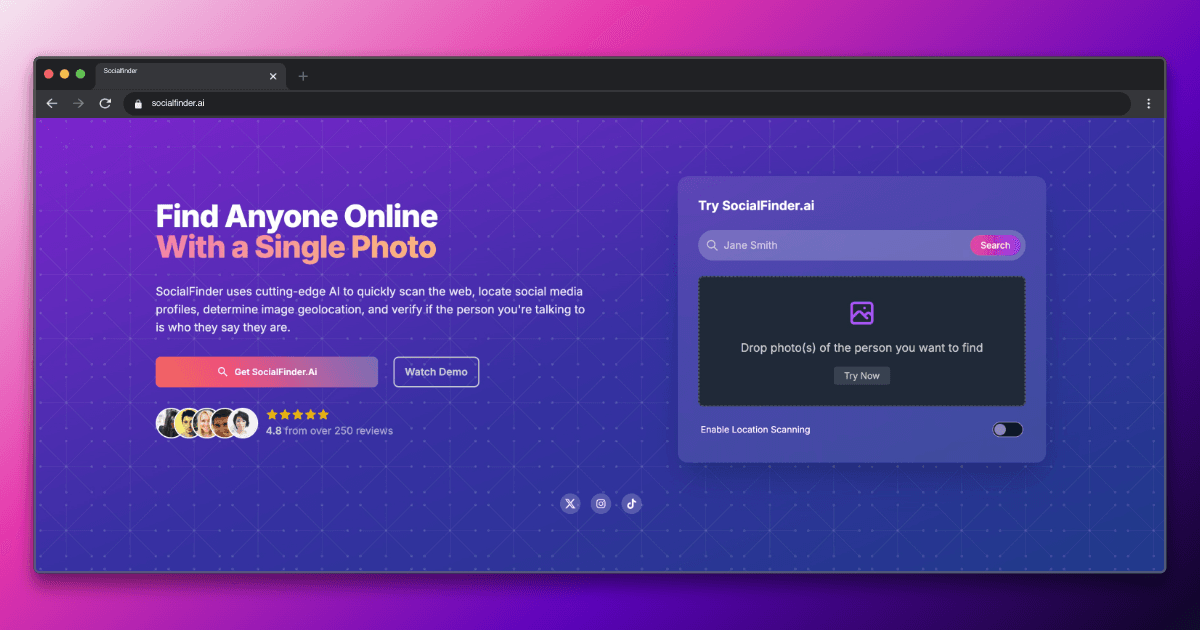
You have a screenshot of someone's face and you want to find out who they are. Maybe it's a dating app match you want to verify before meeting in person. Maybe someone sent you a suspicious photo and you want to check if it's stolen. Maybe you screenshotted a profile that has since disappeared and you want to find the person on other platforms.
Whatever the reason, finding someone from a screenshot is absolutely possible in 2026—you just need to know how to prepare the image for the best results. In this step-by-step guide, I'll walk you through the entire process, from taking a good screenshot to getting confirmed profile matches using AI facial recognition.
Types of Screenshots People Search
Before diving into the how-to, it helps to understand what kind of screenshot you're working with, because each type has its own quirks:
- Dating app screenshots: Tinder, Bumble, Hinge, and other dating profiles. These usually have decent face visibility but may include UI elements, filters, and cropping that need to be dealt with.
- Social media profile screenshots: Instagram, TikTok, Twitter/X profiles you want to cross-reference or verify. Quality varies widely.
- Video call screenshots: Frames captured from Zoom, FaceTime, or WhatsApp video calls. Often lower quality with motion blur and poor lighting.
- News article or website screenshots: Photos from online articles where someone appeared but wasn't identified by name.
- Group photo screenshots: A face you want to identify within a larger group photo. Requires cropping to isolate the specific person.
- Disappearing content screenshots: Instagram Stories, Snapchat, TikTok stories, or other ephemeral content you captured before it vanished.
Step 1: Save or Take the Screenshot
If you haven't taken the screenshot yet, here's how to get the best possible capture:
- iPhone: Press the side button and volume up button simultaneously. The screenshot saves to your Photos app.
- Android: Press the power button and volume down button simultaneously. Some phones also let you swipe three fingers down.
- Mac: Press Command + Shift + 4, then drag to select the area you want to capture. For the whole screen, use Command + Shift + 3.
- Windows: Press Windows + Shift + S to open the Snipping Tool and select the area to capture.
Pro tip for video content: If you're screenshotting a video (TikTok, Instagram Reel, video call), pause the video at a moment when the person's face is clearly visible, well-lit, and facing the camera. Avoid frames where they're mid-expression, turning their head, or blurred from motion. Take multiple screenshots at different moments to give yourself options.
For disappearing content: If you're dealing with Instagram Stories, Snapchat, or other content that will vanish, take the screenshot immediately. Don't wait. You can always delete it later, but you can't go back and capture something that's already gone. Be aware that some platforms notify users when you screenshot their content (Snapchat always does; Instagram does for DM photos).
Step 2: Crop to Focus on the Face
This is the most important step for getting good search results. The AI needs a clear view of the face, and everything else in the image is noise that can reduce accuracy.
How to Crop on Each Platform
- iPhone/iPad: Open the photo in Photos, tap Edit, then tap the crop icon (overlapping right angles). Drag the corners to frame just the face with a small margin around it. Tap Done.
- Android: Open in Google Photos or your gallery app, tap Edit, then Crop. Adjust the frame to focus on the face. Save.
- Mac: Open in Preview, use the rectangular selection tool to draw a box around the face, then go to Tools and select Crop. Save.
- Windows: Open in Photos, click Edit, use the crop tool to select just the face area. Save a copy.
Cropping Best Practices
- Include the entire face from forehead to chin, ear to ear
- Leave a small margin around the face—don't crop so tightly that you cut off the hairline or jaw
- Remove UI elements (app buttons, navigation bars, notification areas)
- If there are multiple people, crop to show only the face you want to search
- Remove text overlays, stickers, or watermarks if they cover the face
Try SocialFinder.ai Now
Upload a photo and see how our AI facial recognition finds social media profiles in seconds.
Try It Now
Upload a photo and see how SocialFinder.ai works in seconds
> Upload a Face. Find Their Accounts.
Drop a photo. Get answers in seconds.
or click to browse files
Step 3: Enhance If Needed
Some screenshots need a little cleanup before they'll produce optimal results. Here's when and how to enhance:
- Too dark: Increase brightness slightly. On iPhone, open the photo, tap Edit, and slide the brightness control to the right. Don't overdo it—you want to reveal facial features, not blow out the highlights.
- Too washed out: Increase contrast slightly to make facial features more defined.
- Slightly blurry: Most phones have a sharpening tool in the Edit menu. Apply it lightly. However, if the screenshot is severely blurred, enhancement won't help—you need a better source image.
Important warning: Do not over-edit the photo. The goal is to make facial features more visible, not to alter them. Avoid beauty filters, face-smoothing effects, or dramatic color changes. These distort the facial geometry that the AI needs to read. A slightly dark but unedited photo will produce better results than a heavily retouched one.
Step 4: Upload to SocialFinder
With your cropped and optionally enhanced screenshot ready, here's how to run the search:
- Go to SocialFinder.ai
- Click the upload area or drag and drop your screenshot
- The AI will automatically detect the face in your image
- Wait approximately 30 to 60 seconds for results
- Review the matching profiles that are returned, including direct links to social media accounts and dating profiles
SocialFinder searches across 3,000+ platforms simultaneously, including Instagram, Facebook, LinkedIn, TikTok, Tinder, Bumble, Hinge, and thousands of smaller networks and forums. The AI uses facial recognition to match the face in your screenshot against profile photos across all these platforms, even if the person uses completely different photos elsewhere.
Step 5: Review and Verify Results
When results come back, take time to verify them properly:
- Check confidence scores: Higher confidence scores indicate a stronger face match. Scores above 90% are very reliable. Scores between 70% and 90% are likely but worth double-checking.
- Cross-reference details: Does the name on the matched profile make sense? Does the location match? Does the age seem right? Do the bio details align with what you know about the person?
- Look at multiple results: If the same person appears across several platforms, that's a strong confirmation. Consistent names, ages, and locations across profiles build confidence.
- Check for catfish indicators: If the matched profiles belong to a model, influencer, or stock photo model, the person who sent you the screenshot may be using stolen photos.
Tips for Better Screenshot Quality
The quality of your screenshot directly affects the quality of your results. Here are the most common mistakes and how to avoid them:
- Avoid screenshots of screenshots. Each generation of screenshotting degrades image quality. If someone texted you a screenshot, use the original image if possible rather than screenshotting their message.
- Pause video at the clearest moment. For TikTok, Instagram Reels, or video calls, scrub through the video frame by frame to find the sharpest, clearest moment where the face is fully visible.
- Use screen recording for ephemeral content. If you're worried about Stories or Reels disappearing, use your phone's screen recording feature to capture the full video, then take a screenshot from the recording at the best frame.
- Don't zoom in before screenshotting. Zooming in on a phone screen reduces the actual pixel data you're capturing. Take the screenshot at normal zoom and crop afterward.
- Maximize screen brightness. Screenshots capture exactly what's displayed on screen. A dim screen produces a dark screenshot. Max out your brightness before capturing.
Troubleshooting Common Issues
Low Resolution Screenshot
If your screenshot is too low-resolution (common with video call frames or screenshots of stories), the AI may struggle to identify enough facial landmarks. Try getting a higher-quality source: ask the person for a photo directly, find their image on a different platform where it might be higher resolution, or use a different frame from the video where the face is larger and clearer.
Multiple Faces in the Screenshot
Group photos and social posts often contain multiple faces. Crop to isolate the specific person you want to identify. If you need to search for multiple people in the same photo, crop each face separately and run individual searches.
Face Partially Obstructed
Sunglasses, face masks, hats, and hands covering part of the face all reduce matching accuracy. The AI needs to see the core facial features—eyes, nose, mouth, jaw—to generate a reliable match. If the obstruction covers too much of the face, look for a different screenshot or photo where the person's face is more visible.
Heavy Filters or AR Effects
Snapchat dog ears, Instagram beauty filters, and TikTok face-altering effects distort the facial geometry that the AI reads. If the only photo you have is heavily filtered, try it anyway—modern AI can sometimes see through light filters—but expect lower accuracy. If available, look for an unfiltered version.
Try SocialFinder.ai Now
Upload a photo and see how our AI facial recognition finds social media profiles in seconds.
Try It Now
Upload a photo and see how SocialFinder.ai works in seconds
> Upload a Face. Find Their Accounts.
Drop a photo. Get answers in seconds.
or click to browse files
Frequently Asked Questions
Can I find someone from a dating app screenshot?
Yes. Dating app screenshots are one of the most common starting points for face searches. Save the screenshot, crop to focus on the person's face (removing the app's UI elements), and upload to SocialFinder. The AI will search for matching profiles across social media, other dating apps, and thousands of additional platforms, helping you verify whether the person is who they claim to be.
Does the screenshot need to be high quality?
Higher quality produces better results, but the AI can work with moderate-quality screenshots as long as the face is clearly visible. The minimum effective resolution is roughly 100x100 pixels for the face area. Most smartphone screenshots easily exceed this. The more important factors are face visibility (front-facing, unobstructed, well-lit) rather than raw pixel count.
Can I search a screenshot from a video call?
Yes, though video call frames tend to be lower quality than photos due to compression and motion blur. Pause the call at a moment when the person is sitting still and facing the camera. If you're on a Mac, use Command + Shift + 4 to capture just the face area. If on a phone, take a full screenshot and crop afterward. The clearer the frame, the better the results.
Will the person know I screenshotted and searched their photo?
SocialFinder does not notify anyone when their photo is searched. The search is completely private. However, some platforms (notably Snapchat) notify users when you take a screenshot of their content. The screenshot notification and the face search are entirely separate—the person would know you took a screenshot but not what you did with it afterward.
What if my screenshot has text or stickers on the face?
Text overlays, stickers, or emoji covering the face will reduce matching accuracy. If the obstruction covers a small portion of the face (a small text watermark over the forehead, for example), the AI can usually still produce results. If major facial features are obscured, look for a different screenshot or photo where the face is fully visible.
Try SocialFinder.ai Tools
Put what you've learned into action with SocialFinder.ai's powerful search tools. Start finding people, verifying identities, and uncovering social media profiles in seconds.
Find Someone from a Photo →
Upload a photo to find anyone's social media profiles instantly
AI Reverse Image Search →
Advanced AI-powered face recognition and reverse image search
Find Instagram User →
Discover Instagram profiles using facial recognition technology
Find Someone Online →
Search across social media platforms to find anyone online
AI People Search →
Smart AI-powered people search across the entire web
Track Social Media Account →
Monitor and track social media profiles and activity
Find TikTok User →
Locate TikTok profiles using photos and facial recognition
Find Secret Social Accounts →
Uncover hidden and secret social media accounts